
Best TiviMate Settings for 4K UK Streaming & Fast EPG (2026)
TiviMate IPTV Player is widely regarded as the gold standard player application for Android TV, Google TV, and Amazon Fire TV Stick devices. With its sleek, native cable-like Electronic Programme Guide (EPG), picture-in-picture mode, multi-view capability, and extensive customization, TiviMate turns any budget streaming stick into a premium home entertainment hub.
However, running TiviMate out of the box with stock settings often leaves significant performance on the table. Here is how to configure the best TiviMate settings for 4K UK streaming to ensure zero stutter, instant channel zapping, and a lightning-fast EPG.
1. Optimal Playback Settings in TiviMate
Navigate to Settings > Playback to adjust the core video rendering engine:
- Buffer Size → Medium: Leaving the buffer size on "None" means any momentary Wi-Fi packet drop causes an audio pop or freeze. Setting it to "Large" adds a slight delay to channel zapping. Medium strikes the perfect balance—giving you a 4–6 second safety buffer while keeping channel changes snappy.
- Auto Frame Rate (AFR) → ON: This is a crucial setting for UK sports fans. UK broadcasts (Sky Sports, TNT Sports, BBC) air at 50 Hz (50 FPS), whereas US and movie feeds run at 60 Hz or 24 Hz. Enabling AFR allows TiviMate to automatically command your TV's display panel to switch to 50Hz, eliminating the micro-stutter visible during fast football camera pans.
- Video Decoder → Hardware: Always ensure the video decoder is set to Hardware. Hardware decoding passes the stream directly to the GPU on your Firestick or Shield, which effortlessly decodes high-bitrate 4K HEVC/H.265 video without cooking the CPU.
- Audio Decoder → Hardware: Set to Hardware, and enable Audio Passthrough if your Firestick is connected to a soundbar or home cinema AV receiver capable of decoding Dolby Digital 5.1.
2. Fast EPG (TV Guide) Configuration
One of TiviMate's greatest strengths is its rich 7-day UK TV guide. To keep your guide always accurate and prevent app memory bloat:
- Go to Settings > EPG > EPG Sources.
- Under Update Interval, select Every 12 Hours or On App Start.
- Set Days to Keep EPG to 2 Days. Keeping 7–14 days of historical guide data consumes hundreds of megabytes of RAM on older Fire TV devices and can cause crashes.
- Enable Update on Playlist Change so newly added channels immediately receive guide listings.
3. Organizing Channel Groups & Hiding Unused Categories
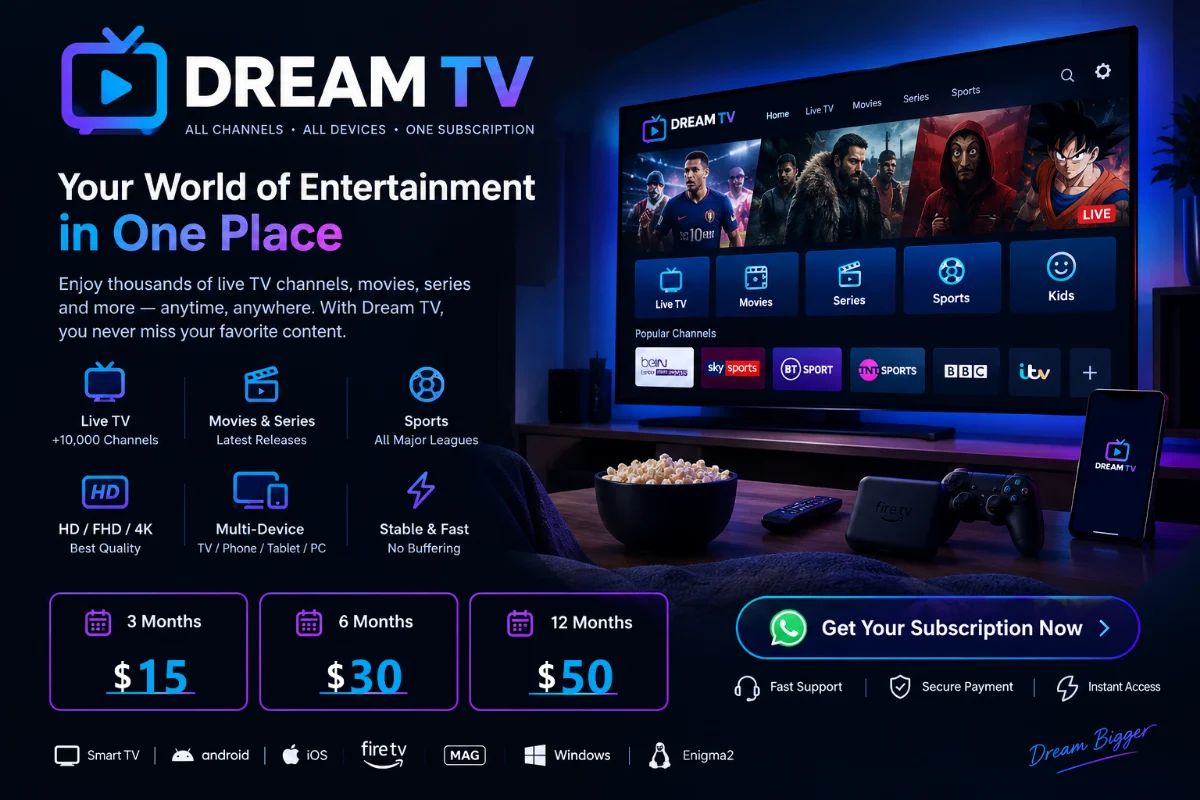
A comprehensive UK service like DREAM TV offers over 20,000 live channels and 80,000+ movies and series from around the world. Navigating through dozens of foreign language folders slows down channel surfing.
To streamline your guide:
- In the TV Guide view, hold down the Select / OK button on your remote.
- Choose Group Options > Manage Groups.
- Toggle OFF any regional categories you do not watch (e.g. Arabic, French, Italian, Asian) and keep your priority UK folders active (e.g. UK Entertainment, UK Sports 4K, UK Cinema, UK Documentaries).
- Use Reorder Groups to pin your most-watched sports and movie categories directly to the top.
4. Setting Up Catch-Up & Recording
With a DREAM TV subscription, major UK channels feature catch-up functionality, indicated by a small clock icon next to the channel name in TiviMate:
- In the guide, simply scroll backward in time across the timeline and click any aired programme to start playback from the beginning.
- To record live programmes, connect a USB flash drive to your Firestick via an inexpensive OTG (On-The-Go) Y-cable, and configure the storage directory under Settings > Other > Recording.
5. Pairing TiviMate with DREAM TV High-Speed Servers
TiviMate performs at its absolute peak when paired with a reliable, high-speed Xtream Codes API login from DREAM TV. You receive dedicated server hostnames, username, password, and instant EPG mapping that auto-populates in seconds.
Frequently Asked Questions
Is TiviMate free or does it require a premium subscription?
TiviMate offers a capable free version, but TiviMate Premium (available as a one-time lifetime license or annual subscription via Google Play / TiviMate Companion) unlocks essential features like multi-view, recording, category management, and multiple playlist support.
How do I fix Error 511 or Error 401 in TiviMate?
Error 511 and 401 indicate authentication failures. Check that your device date and time are synchronized under system settings, verify your subscription is active, and confirm with your provider whether the server URL has changed.